Ocarina of Time Port
An existing game or its source code brought to another platform.
Based on The Legend of Zelda: Ocarina of Time
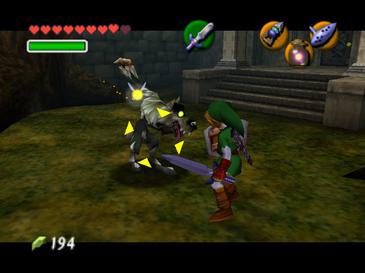
 Original game image
About
Android ports of Ship of Harkinian, based on the HarbourMasters project. There are four ports with separate app IDs that can be installed together: regular Ship of Harkinian (the recommended one, closest to upstream), Fusion Fork, SOHCS (Roborich's cel-shaded fork) and SOHNEI (Skijer's Not Enough Items fork). It supports Android 7+ with OpenGL ES 3.0+ and was tested on Android 15.
How it differs from the original
Fusion adds an experimental combined feature set, SOHCS a cel-shaded presentation, and SOHNEI added Not Enough Items content, which is a beta fork.
Getting started
Check that you have a supported, legally obtained Ocarina of Time ROM, install one of the ports from the releases page and open the app once. When prompted, select your ROM so the app can generate the required .otr or .o2r game data; a Master Quest ROM can be extracted as a second ROM. The menu opens with the Back, Select or minus button, and mods are enabled from Settings > Mod Menu.
Known issues & limitations
- SOHNEI is a beta fork.
What you need to run it
Features
- The cel-shaded fork offers a cel-shaded presentation.
- The NEI fork adds NEI content.
- The different ports can be installed together.
- Mods can be enabled from the Mod Menu.
How to install
- Install a port from the releases page.
- Open the app once to create its data folder and copy support files.
- Allow setup and select your ROM to generate the required game data.
- If you have a Master Quest ROM, choose to extract another ROM when prompted; otherwise, continue into the game.
- After setup, subsequent launches should start directly into the game.
Controls
- Use Back, Select, the controller's minus button, or the Android back gesture or button to open the menu.
- Navigate menus using touch controls or a controller.
Summarised from the project's README.
Additional notes
- Separate data
- SOHCS uses its own SOHCS data folder and offers to copy saves and settings from an existing SOH folder without moving or deleting them.
- Black screen
- If the game shows a black screen, delete imgui.ini from the SOH folder or set MSAA to 1 in Settings > Graphics.
FAQ
- What is Ocarina of Time Port?
- Ocarina of Time Port is an open-source port of The Legend of Zelda: Ocarina of Time. An existing game or its source code brought to another platform. The original game ran on Android.
- Do I need the original game files to run Ocarina of Time Port?
- Yes. The project does not include the original game's assets, so you need your own copy.
- Why is it immediately crashing?
- Try deleting and regenerating the extracted `.otr` or `.o2r` game data from your own ROM.
- The game opened once but now shows a black screen.
- Try deleting `imgui.ini` from your `SOH` folder. If it still happens, set MSAA to 1 in Settings > Graphics.
- My controller is not doing anything.
- Open the menu and check Settings > Controls to confirm the controller is detected and mapped. If this happens immediately after first setup, close and reopen the app once.
- Can I hide the on-screen touch controls?
- Yes. Use Settings > Touch Controls > Disable Touch Controls.
- Can I resize the menu?
- Yes. Use Settings > General > Menu Scale.
- How do I add mods?
- Place mod `.otr` or `.o2r` files in the `mods` folder inside the selected edition's data folder, then enable them from Settings > Mod Menu.
More like Ocarina of Time Port
Original game image Original game imageOriginal game imageOriginal game imageOriginal game image